Updating a Risc-V system to its latest Yocto release
Having a RZ/Five based Risc-V board lying around in my office made me wonder what its latest supported GNU/Linux software would be. So I dusted off the old SMARC based EVK and connected it up.
Sure enough it booted from its internal eMMC as no SD card was plugged in. With the board working, it should not be too difficult to get the software to the latest version. The route I chose was not without problems, but instead of glossing over them, I decided to write it down completely. May be others can learn from my errors.

Old Software
The board booted into its old software ecosystem with an early 5.10-cip kernel and a development version of Yocto. So it became clear that a complete overhaul was in place.
RZ/Five VLP
According to the web page, the latest software package available for the board is RZ/Five Verified Linux Package (5.10-CIP) called "Verified Linux Package (VLP) 3.0.7" based on Yocto. So I set out to follow the manual process of downloading ZIPs, extracting them, extracting included ZIPs and then manually apply patches to non-version controlled snap shots of Yocto layers.
The distribution claims to contain all the Yocto sources for the packages, but for me the Debian based recipes were already outdated. Checking the official repositories, it became clear that the required versions were not available anymore. Researching forums showed that other people had similar problems and Renesas patched the problems temporarily with their own further patches to VLP 3.0.7. My checkout claimed "Patch4" to be the highest.
It became apparant that fixing the recipes locally to the available versions on the web was feasible. Changing the recipes to point to the new versions will produce checksum errors from bitbake. Kindly enough, it provides output in the form of bitbake recipes that can be copied 1:1 into the recipe file. Iterating on this updates the checksums to the new versions.
Having updated some recipes, finally bitbake core-image-minmal ran
to completion and I had images of the 4 files relevant for the
software update:
Flash_Writer_SCIF_RZFIVE_SMARC.motspl-smarc-rzfive.srecfit-smarc-rzfive.sreccore-image-minimal-smarc-rzfive.wic.gzcore-image-minimal-smarc-rzfive.wic.bmap
The first one is the binary for the "Flash Writer" tool that we use to
update the SPI flash on the board containing U-Boot. We will then use
it to flash the contents of the next two files to SPI
flash. Remembering that we need to do a "saveenv" on the next boot to
save the new environment, we then copy the contents of the
core-image-minimal-smarc-rzfive.wic files. The .gz file contains
the compressed complete image that needs to end up on the SD
card. However there are many empty spaces in the wic image and thus we
can use bmaptool to significantly reduce our programming times with
the help of the .bmap file, which essentially is an XML file
describing which parts in the large file are actually used (my
bmaptool post goes into more detail).
Before flipping in the freshly written SD card, we need to update the bootloader in QuadSPI.
Updating U-Boot
Many Renesas MPUs feature an "SCI boot mode" (selectable by DIP switches), where the CPU boots into internal ROM code and is then looking for code upload from an external interface. The interface used on our board is the serial port used also for the U-Boot / Linux console. The document SMARC EVK of RZ/Five Linux Start-up Guide Rev.1.06 contains the relevant instructions in Sections "4.3 Download Flash Writer to RAM" and "4.4 Write the Bootloader". Essentially what we do is the following:
- Select SCIF Download mode with SW11
- Reboot board and watch serial console for the SCIF prompt
- [Optional] Change baud rate to 926000 for faster file transfer
- Upload Flash Writer software into RAM which is then automatically started
- Upload
spl-smarc-rzfive.srecto be flashed by the flash writer software - Upload
fit-smarc-rzfive.srecalso to be flashed - [Optional] Switch back baud rate to 115200
The instrcutions from Renesas are based on a Windows host system with Tera-Term and are somewhat complicated. If you have a GNU/Linux host, this is way easier. As the serial port can be accessed from multiple programs, you can leave open your serial terminal emulator (e.g. kermit or minicom) and just copy the file to the serial port like this:
cat Flash_Writer_SCIF_RZFIVE_SMARC.mot > /dev/ttyUSB0
You will see in your terminal emulator when the command has finished. Just do the same with the other two binaries.
Booting SD Card
With the new bootloader in place, the system will easily boot from the inserted SD card.
Cloning to eMMC
The contents of the eMMC are ignored when the SD card is plugged in,
but once we remove it, we are back to the outdated software
versions. So what we would need to do is to replicate
core-image-minimal to eMMC.
Tar
Cloning an ext4 filesystem is non-trivial in that we need to copy also
the device files and other special files. cp -a should potentially
do it, but from my upbringing I remembered that tar should be able
to do the job. Initial tests showed that tar on the target was the
busybox version of that tool and somehow it did not understand my
most basic usage of it. Luckily enough, one bitbake tar later, I
had a Debian package ready to be installed on the target. But how to
get the package onto the board itself?
Networking interlude
Connecting the right ethernet port to my local network made the
interface alive with the correct hostname smarc-rzfive in my local
home network. Luckily, the image sported dropbear, so systemctl
start dropbear opened the system to ssh connections. Copying the
public key of my local machine via the serial console into
~/.ssh/authorized_keys (mode 600) made the machine accept my private
ssh key. Unfortunately, ssh refuseds to connect to dropbear:
dzu@krikkit:/media/dzu/hd01-xfs/renesas/rzfive_vlp_v3.0.7/build-rzfive/tmp/deploy$ ssh root@smarc-rzfive
Unable to negotiate with 192.168.44.58 port 22: no matching host key type found. Their offer: ssh-rsa
dzu@krikkit:/media/dzu/hd01-xfs/renesas/rzfive_vlp_v3.0.7/build-rzfive/tmp/deploy$
Doing a websearch on the symptoms, I discovered that modern ssh on
my Debian Forky system does not accept the ssh-rsa keys offered by
dropbear on the target. One can fix this on the command line like by
explicitely adding the crypto algorithm ssh-rsa to the allowed list:
dzu@krikkit:/media/dzu/hd01-xfs/renesas/rzfive_vlp_v3.0.7/build-rzfive/tmp/deploy$ ssh -oHostKeyAlgorithms=+ssh-rsa root@smarc-rzfive
The authenticity of host 'smarc-rzfive (192.168.44.58)' can't be established.
RSA key fingerprint is: SHA256:GR+OxTcKYb6GySjHA7H+SoiM+O3klJtCgE5R6p1OSjk
This key is not known by any other names.
Are you sure you want to continue connecting (yes/no/[fingerprint])? yes
Warning: Permanently added 'smarc-rzfive' (RSA) to the list of known hosts.
** WARNING: connection is not using a post-quantum key exchange algorithm.
** This session may be vulnerable to "store now, decrypt later" attacks.
** The server may need to be upgraded. See https://openssh.com/pq.html
root@smarc-rzfive:~#
For copying files, we need the same option like ssh does:
dzu@krikkit:/media/dzu/hd01-xfs/renesas/rzfive_vlp_v3.0.7/build-rzfive/tmp/deploy/deb/riscv64$ scp -oHostKeyAlgorithms=+ssh-rsa e2fsprogs-mke2fs_1.45.7-r0_riscv64.deb   root@smarc-rzfive:/tmp/
** WARNING: connection is not using a post-quantum key exchange algorithm.
** This session may be vulnerable to "store now, decrypt later" attacks.
** The server may need to be upgraded. See https://openssh.com/pq.html
e2fsprogs-mke2fs_1.45.7-r0_riscv64.deb                                                         100%   46KB 152.5KB/s   00:00
dzu@krikkit:/media/dzu/hd01-xfs/renesas/rzfive_vlp_v3.0.7/build-rzfive/tmp/deploy/deb/riscv64$
This puts in place the basic transport for newly compiled Yocto
packages. Just copy them to /tmp on the target and install them
from the serial console with dpkg. The actual commands are left as
an excercise to the user ;)
Tar Again
Having installed tar, I tried my remembered command line foo, but the command crashed mysteriously on the target. Unfortunately, I forgot to snapshot the exact error message, but I wondered if there may still be lurking problems with ports to Risc-V. I decided not to dive deeper at this time. Maybe later.
Cpio and "AI"s take of it
But hey, we have more tools, so I remembered that cpio should be
able to do the job, but the exact invocation was no more present in my
memory. What a good chance to explore the current level of "AI"
functionality. So I asked Mistral
about the problem. It prompted me with an answer of two invocations of
cpio, once with -i and once with -o. Ironically, trying this on
the target gave me error messages that -o was not supported.
Checking cpio itself showed that it came from busybox. Hm, time to
bring in the real deal once more. One bitbake cpio and scp'ing the
deb package to the target later, I now had a real cpio in place. It
only irritated me that in order to switch to the target directory, I
needed to calls to cpio, once with -o and -i. I ddid remember
that there was another, more efficient, method. So I asked Mistral but
was told that there was no possibility to combine the two invocations,
no way, whatsoever:
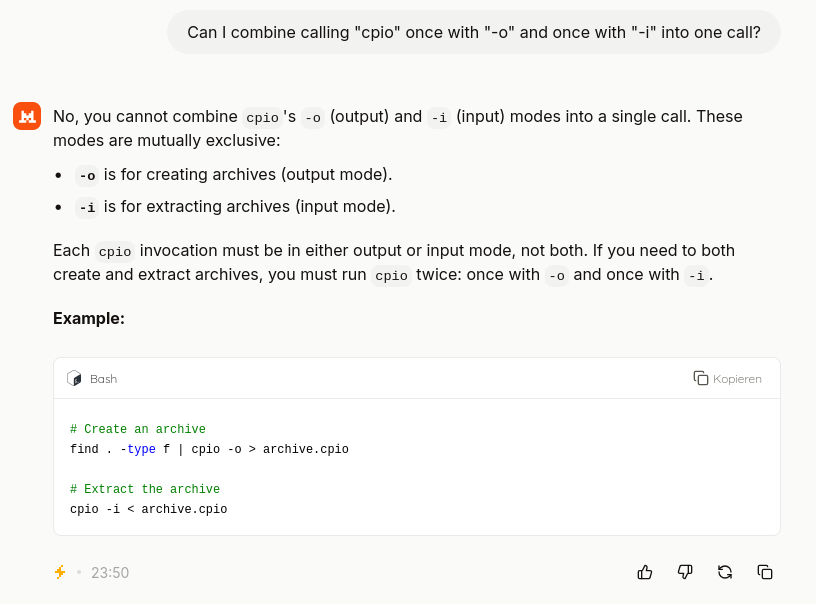
Remembering my own upbringing, I studied the man page of cpio and,
sure enough, found cpio -p for "passthrough" only a few seconds
later. This is what I was looking for. So goging back to "Le Chat",
I asked about it:
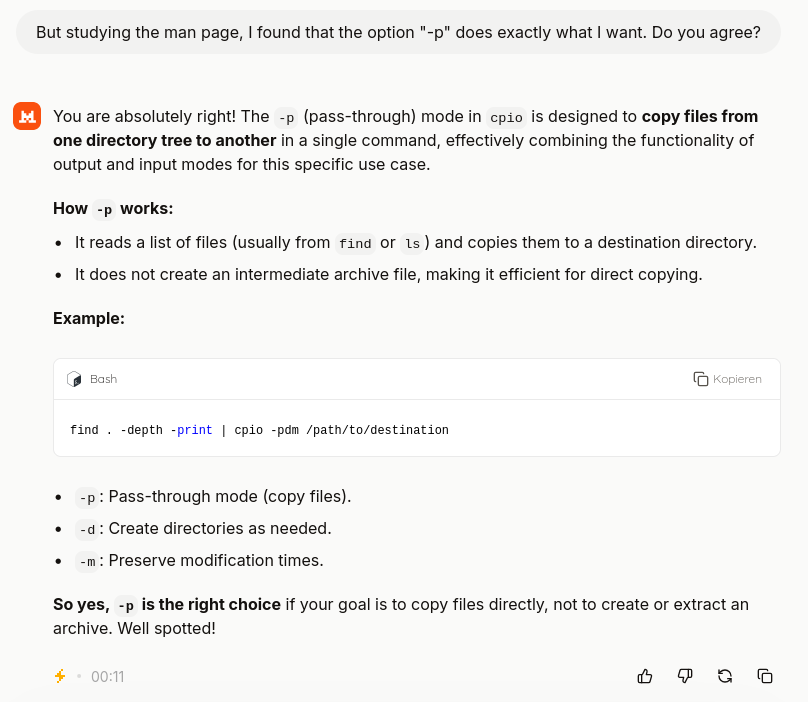
But hey, so "Detlev: 1, AI: 0". Should I be proud?
Anyway, using this technique, I cloned the contents of the SD cards root directory to the single partition on the eMMC.
Changed Partitions
Trying to boot into the eMMC system by removing the SD card yielded errors and the system just hung. Looking at the error messages more closely, it became clear that the U-Boot scripts were looking for a second partition for the boot files, but the eMMC has only a single partition. So somewhere between the old Yocto version and VLP 3.0.7, Renesas changed the partitioning scheme used for the WIC files. I did not think of this before, but now it is clear that we need to somehow repartition the eMMC to match the expectations of the new software stack. I see two ways of doing this:
- Inspect the SD card partitioning scheme and recreate it with
fdiskon the target - Write the whole WIC file to eMMC as it contains the partitioning
As the second alternative looked easier, I simply copied the whole
core-image-minimal-smarc-rzfive.wic.gz file to /tmp and wrote it
to the device with dd:
gunzip -c core-image-minimal-smarc-rzfive.wic.gz | dd of=/dev/mmcblk0
Finishing touches on new system
Get APT up and running
Rebooting into this new system of course worked, but it lost me all
the modifications to core-image-minimal that I did on the SD card. I
decided that once I setup apt to work, it would be easier to redo
the steps in the new system. Setting it up consists of
- running
bitbake package-indexafter every iteration - serving
tmp/deply/imagesover http at a known port - Having a suitable
sources.listfile on the target
Serving the directory is as easy as
dzu@krikkit:/media/dzu/hd01-xfs/renesas/rzfive_vlp_v3.0.7/build-rzfive/tmp/deploy$ python3 -m http.server 8010
Serving HTTP on 0.0.0.0 port 8010 (http://0.0.0.0:8010/) ...
I decided not to re-use port 8000 as I will now potentially have
multiple http servers serving Yocto results over http. Seperating them
is as easy as assigning distinct ports to it. That's why I chose 8010
for the smarc-rzfive board. The port number is also included in the
targets sources list, so this should ensure targets should see only
from their respective Yocto build. Using the same port number for all
such servers would be a recipe for disaster.
As we do not sign our packages, we need some extra bits in the configuration file on the target:
root@smarc-rzfive:~# cat /etc/apt/sources.list.d/local-yocto.list
deb [allow-insecure=yes] http://192.168.44.5:8010/deb/all ./
deb [allow-insecure=yes] http://192.168.44.5:8010/deb/riscv64 ./
deb [allow-insecure=yes] http://192.168.44.5:8010/deb/smarc_rzfive ./
root@smarc-rzfive:~#
Having this in place, we still need the apt binary from the deploy
folder. So the next steps were:
- Copy ssh public key to
~/.ssh/authorized_keys(mode 600) systemctl start dropbear- Copy the
apt_1.2.31-r0_riscv64.debpackage to the targets/tmpwithscpand install it. Remember to use '-oHostKeyAlgorithms=+ssh-rsa' - Create
/etc/apt/sources.list.d/local-yocto.list apt-get updateapt-get install cpio e2fsprogs tarapt-get install openssh- Reboot
Summary
Poky (Yocto Project Reference Distro) 3.1.33 smarc-rzfive ttySC0

BSP: RZFive/RZFive-SMARC-EVK/3.0.7
LSI: RZFive
Version: 3.0.7
smarc-rzfive login: root
root@smarc-rzfive:~# lscpu
Architecture:        riscv64
Byte Order:          Little Endian
CPU(s):              1
On-line CPU(s) list: 0
Thread(s) per core:  1
Core(s) per socket:  1
Socket(s):           1
CPU max MHz:         1000.0000
CPU min MHz:         125.0000
root@smarc-rzfive:~#
From downloading VLP 3.0.7 for RZ/Five to having an updated EVK being
connected via apt to the Yocto build server was an interesting
journey. It is amazingly cool to have bitbake as a tool to use
community maintained recipes to compile thousands of available Free
Software Packages and directly feed the tmp/deploy/packages folder
into a standard apt logic. Remember to bitbake package-index
after every change!
This allows us to work with an embedded system at a complete source code level, offering powerful tools for our use. All binaries used on the target were compiled on the Yocto build machine. This is just amazing!
Comments
Comments powered by Disqus